GPU Overclocking
Boost clock speed and memory frequency beyond factory limits for maximum gaming performance.
Monitor, overclock, and configure your NVIDIA GPU in real time. Boost FPS, control fan speed, create custom game profiles — all without touching your hardware.
| NVIDIA Inspector — File Information | |
|---|---|
| Software Name | NVIDIA Inspector |
| Version | 1.9.7.8 |
| File Size | ~300 KB |
| Developer | Orbmu2k |
| License | Freeware |
| Compatible OS | Windows 11 / 10 / 8.1 / 7 |
| Min. RAM | 256 MB |
| Download | Download Page → |
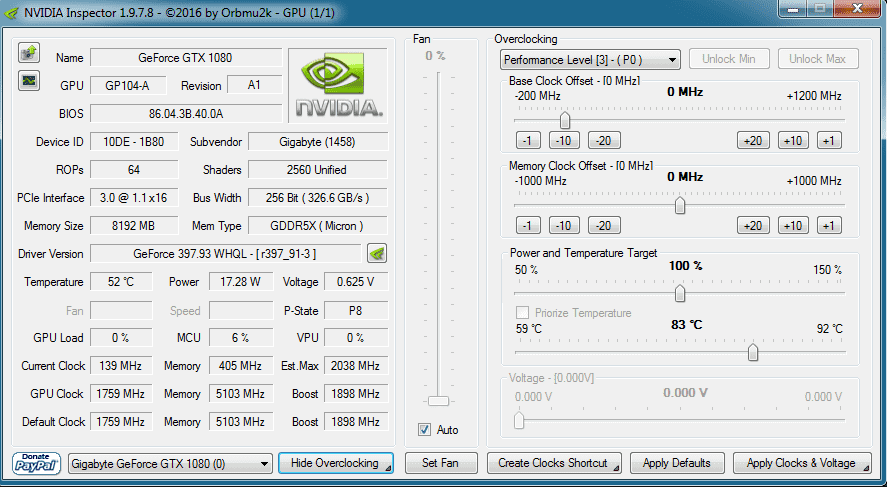
NVIDIA Inspector is a multi-functional GPU tool specifically designed for NVIDIA graphics cards. It reads all hardware data directly from your NVIDIA driver — including clock speeds, temperatures, fan speed, and voltage — and lets you modify them in real time.
Unlike basic monitoring tools, NVIDIA Inspector doubles as a full overclocking suite. You can boost core clocks, memory clocks, or cap FPS — all without a single hardware change.
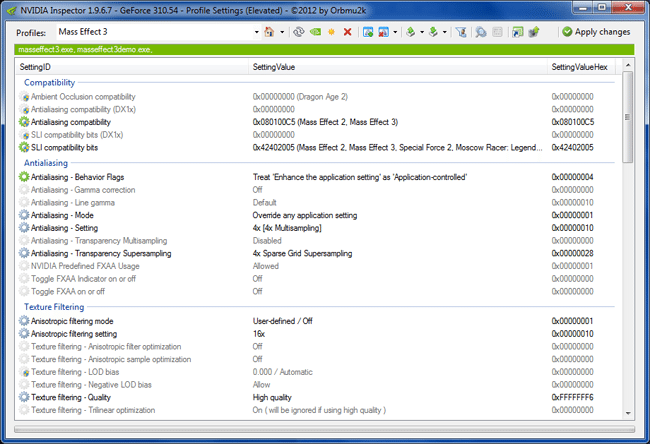
It also includes NVIDIA Profile Inspector download, a companion tool that lets you create per-game graphic profiles and configure driver-level settings per application.
Download NVIDIA InspectorEverything you need to get the most from your NVIDIA GPU — all in one lightweight tool.
Boost clock speed and memory frequency beyond factory limits for maximum gaming performance.
Real-time GPU temperature, core clock, memory clock, and voltage readings in one interface.
Set custom fan curves to keep your GPU cool under load or quiet during light tasks.
Push FPS higher for competitive gaming or cap it for consistent frame-time in single-player.
Choose between Maximum Performance and Power Saver modes based on your needs.
Create and save separate GPU profiles for each game — switch instantly without reconfiguring.
Enable SLI for games that don't natively support it and unlock multi-GPU performance.
Advanced users can script overclocking via .bat files for automated GPU management.
View every detail about your NVIDIA card — VRAM, bandwidth, driver version, and more.
See the interface before you download.
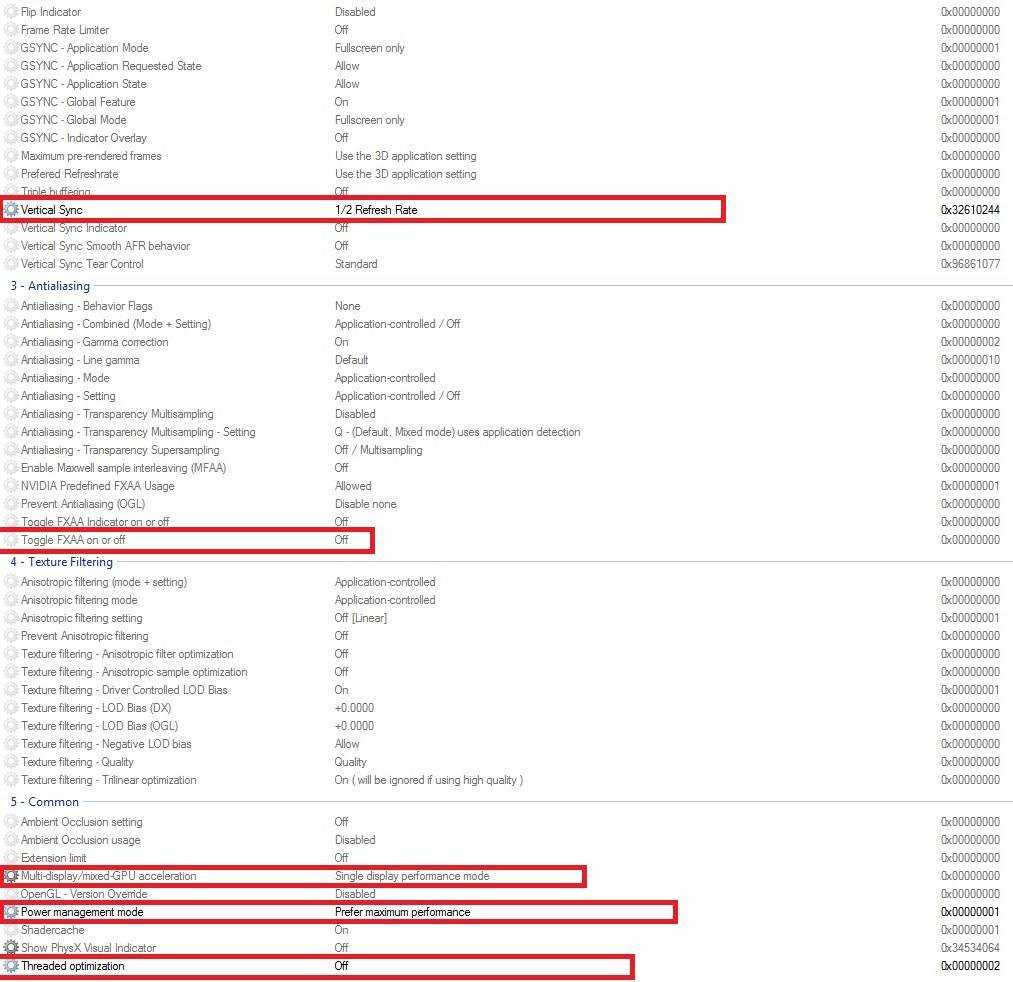
For the best gaming performance, configure NVIDIA Inspector with these recommended settings:
Windows 11, Windows 10, Windows 8.1, or Windows 7
Any NVIDIA GeForce GPU — from GTX 600 series to RTX 40 series
Minimum 300 KB free disk space — NVIDIA Inspector is incredibly lightweight
Minimum 256 MB RAM. Works on virtually any modern PC configuration.
Advanced users can control their GPU through .bat scripts. Create a text file with the commands below,
save it as overclock.bat in your NVIDIA Inspector folder, and run as Administrator.
SET VOLT=650000
SET MEMORY=500
SET CORE=100

SET GPU0=-lockVoltagePoint:0,%VOLT% -setBaseClockOffset:0,0,%CORE% -setMemoryClockOffset:0,0,%MEMORY%
SET GPU1=-lockVoltagePoint:1,%VOLT% -setBaseClockOffset:1,0,%CORE% -setMemoryClockOffset:1,0,%MEMORY%
SET GPU2=-lockVoltagePoint:2,%VOLT% -setBaseClockOffset:2,0,%CORE% -setMemoryClockOffset:2,0,%MEMORY%

nvidiaInspector.exe %GPU0% %GPU1% %GPU2%CORE and MEMORY values to match
your GPU's safe overclock headroom. Start low (+50 MHz) and increase gradually while testing stability.
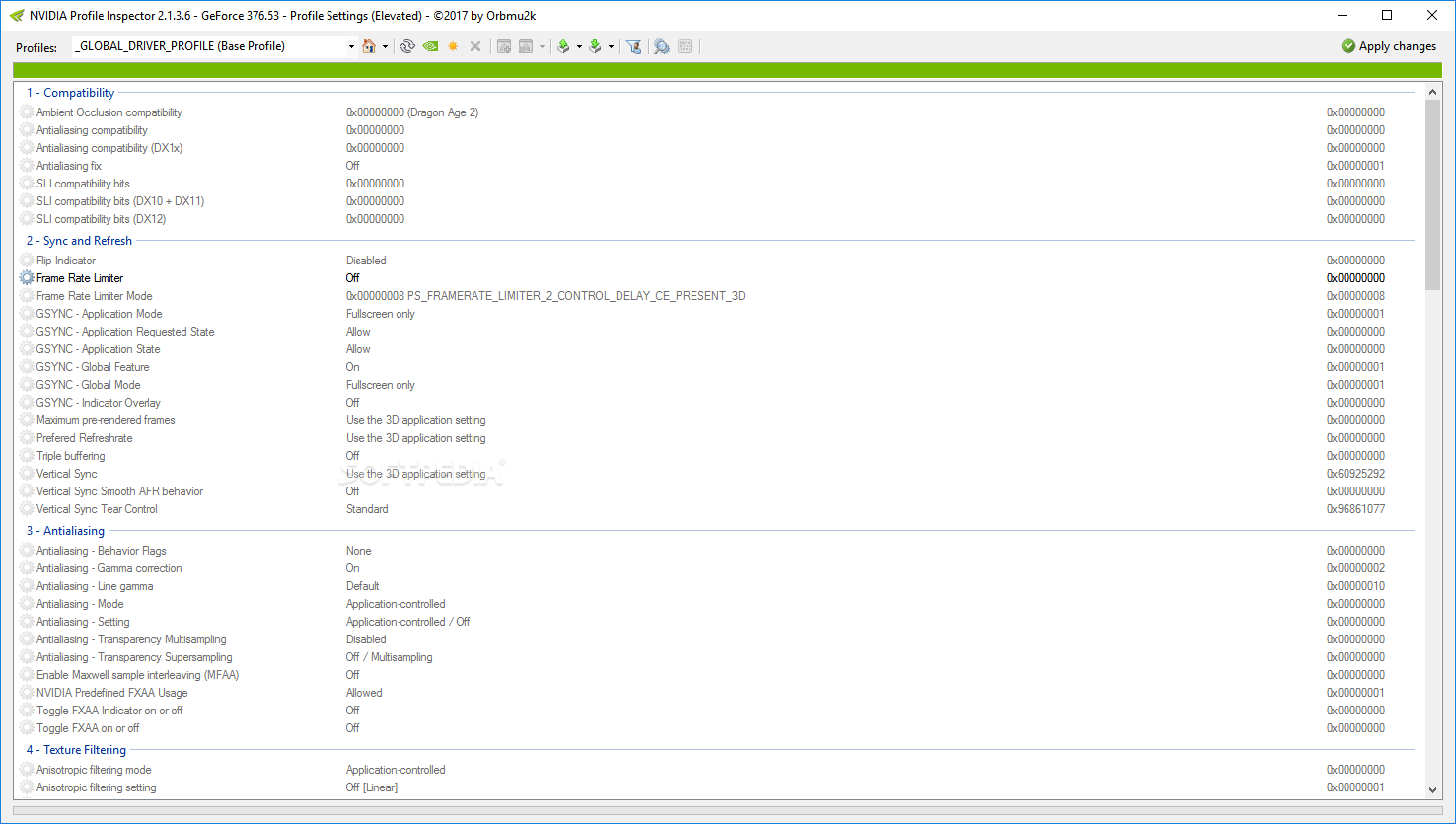
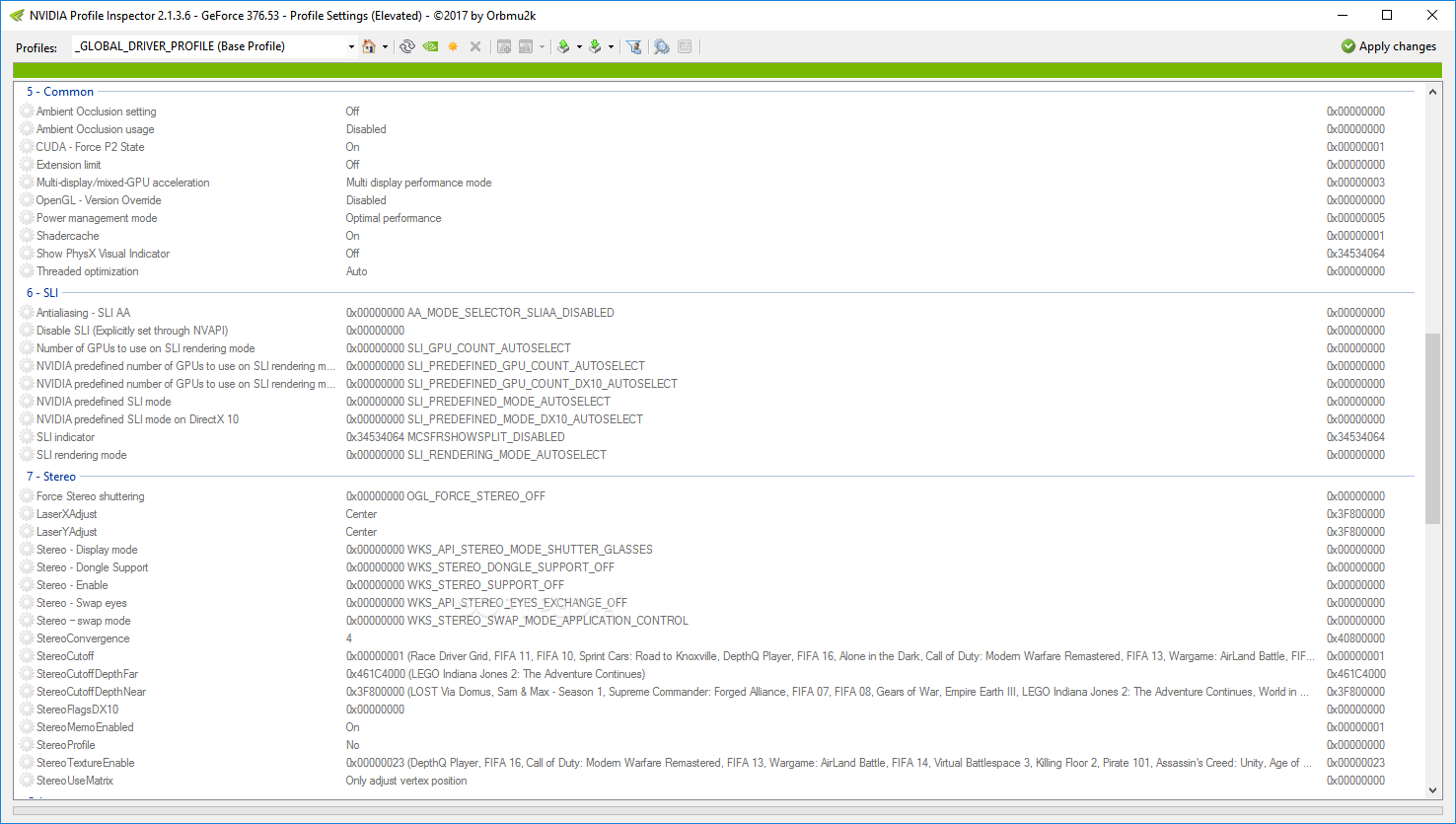
Bundled inside NVIDIA Inspector is the NVIDIA Profile Inspector download — a lightweight companion tool that lets you create and manage per-game driver settings.
If you don't need full overclocking features, Profile Inspector alone can dramatically improve your gaming experience by applying optimized settings per-game — no hardware changes needed.
It works perfectly on Windows 10, 8/8.1, and 7.
NVIDIA Profile Inspector download →Everything you need to know about NVIDIA Inspector.
It is a graphics profiler for the NVIDIA Graphics card. You can overclock your graphics card using this tool. This software works on Windows operating system. You can configure fan speed, clocking speed of your video card without touching the hardware.
There are many ways to configure. Open the tool, select your profile, and adjust the overclock sliders for core, memory and voltage. Watch the video tutorial linked on this page to configure it easily.
Using the best settings we have shared on the Best Settings page. You can follow that method to overclock the graphics card. Use the core clock and memory clock offset sliders. No need to touch the hardware.
The tool includes an option to boost FPS. Unlock the shader clock, increase the core offset, and ensure power management is set to Maximum Performance to gain extra FPS in games.
In the profile settings under "Frame Rate Limiter", you can set a specific FPS cap. This stabilizes frame pacing in games prone to micro-stutter or GPU overheating.
Set Vertical Sync to 1/2 refresh rate, turn off FXAA, use Single Display Performance Mode, and keep Power Management on Maximum Performance. See our full Best Settings guide for more.
You need NVIDIA Profile Inspector to create a custom profile. Click "Create New Profile", name it after your game executable, and apply your settings. By using this, you can create different profiles for different needs.
Create a .bat file with your NVIDIAInspector.exe commands (e.g., -setBaseClockOffset:0,0,100), save it in the same folder as the .exe, and run it as administrator to apply overclock settings automatically.
It is a small companion tool inside NVIDIA Inspector. Using it you can create and manage custom driver-level game profiles — configure anti-aliasing, anisotropic filtering, and other rendering options per-game.
Download NVIDIA Inspector free and start optimizing your graphics card today.
Download Free NowNVIDIA Inspector is the best tool to configure your NVIDIA graphics card. You can create as many profiles as you need for every game, without ever touching hardware. Overclock your graphics card easily according to requirements, enable SLI for unsupported games, and control fan speed, temperature, and clock speed all from one lightweight interface.