NVIDIA Profile Inspector Download
NVIDIA Profile Inspector is a free GPU driver profile manager for Windows by Orbmu2k. Configure hidden NVIDIA driver settings, frame rate limits, and custom profiles for every game. Download the latest v3.0.2.1 release below (portable zip, no installer needed).
What Is NVIDIA Profile Inspector?
NVIDIA Profile Inspector (developed by Orbmu2k) is the definitive utility for managing NVIDIA graphics driver profiles. While the standard NVIDIA Control Panel only exposes basic options, Profile Inspector unlocks hundreds of hidden driver flags directly from the NVIDIA driver database.
Using Profile Inspector, you can force custom antialiasing modes, override anisotropic filtering, toggle Resizable BAR (rBAR) flags, cap frame rates with sub-millisecond precision, and import/export .nip profile backups.
Official GitHub Release · ~423 KB · No installer required
What's New in Version v3.0.2.1
- Modernized user interface with a redesigned window and title bar layout, updated About dialog, splash screen, status bar, and in-app notifications.
- Built-in update functionality with GitHub release checking, Release and Pre-release channel selection, and a prepared in-place updater.
- Greatly expanded settings browser with more flexible filters, improved metadata resolution, and better visibility of relevant values and changes.
- Enhanced import/export workflows for `.nip` profiles and NVIDIA text formats, including Merge/Replace strategies and multi-file import.
Profile Inspector Features
All the per-game settings you need, accessible in one lightweight window.
Per-Game Profiles
Create separate GPU setting profiles for each game. Switch between them without changing global settings.
Anti-Aliasing Control
Override game AA settings with driver-level AA modes — including MSAA, CSAA, and transparency AA.
Anisotropic Filtering
Force high-quality AF on any game for crisper textures, independent of in-game AF settings.
SLI & rBAR Profiles
Enable and configure SLI or Resizable BAR bits for games that don't natively support them.
Export/Import (.nip)
Export profile configurations as .nip files and share them with other users or use as backups.
Frame Rate Limiting
Driver-level FPS capping for ultra-smooth frame times with minimal input latency.
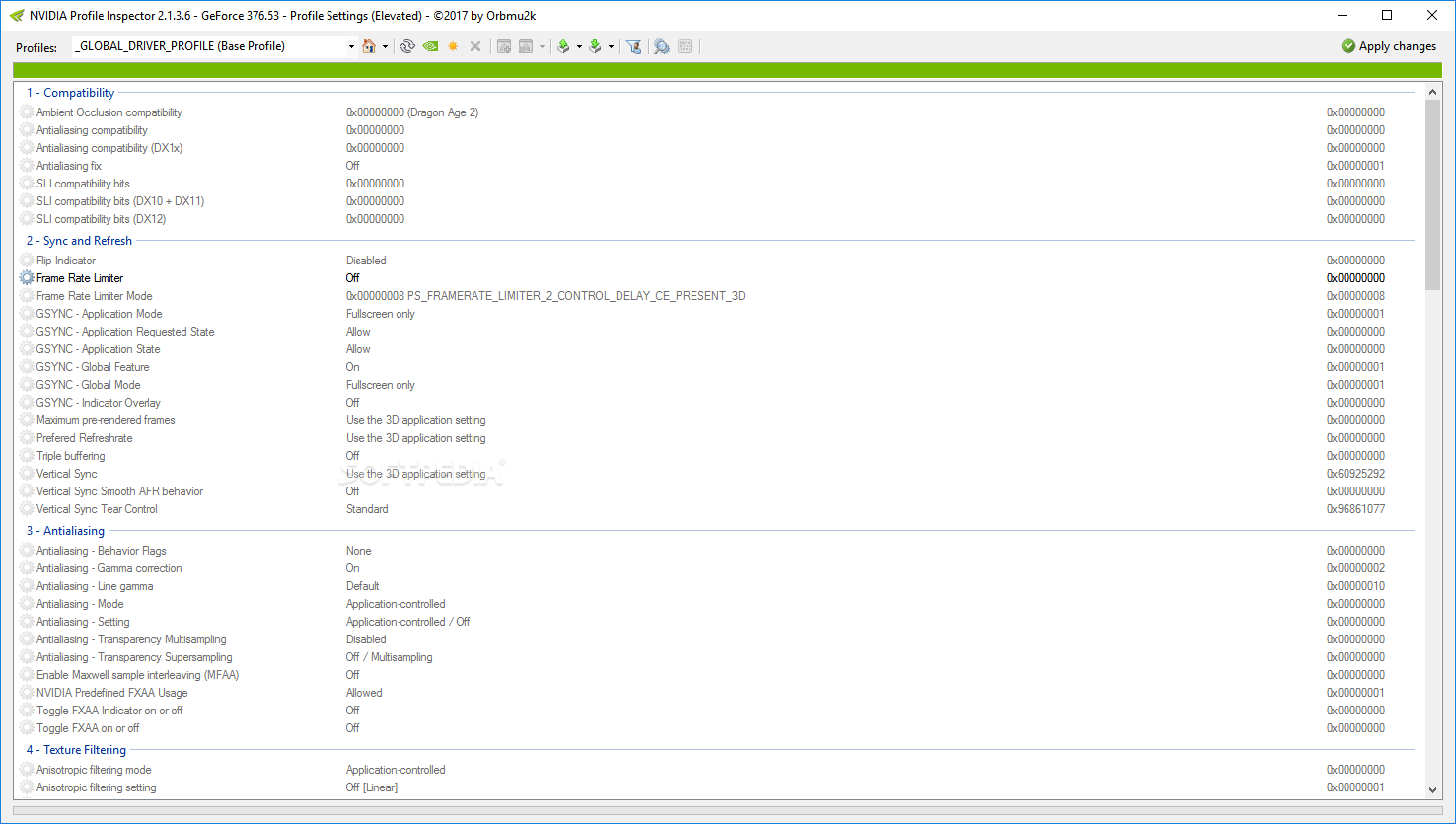
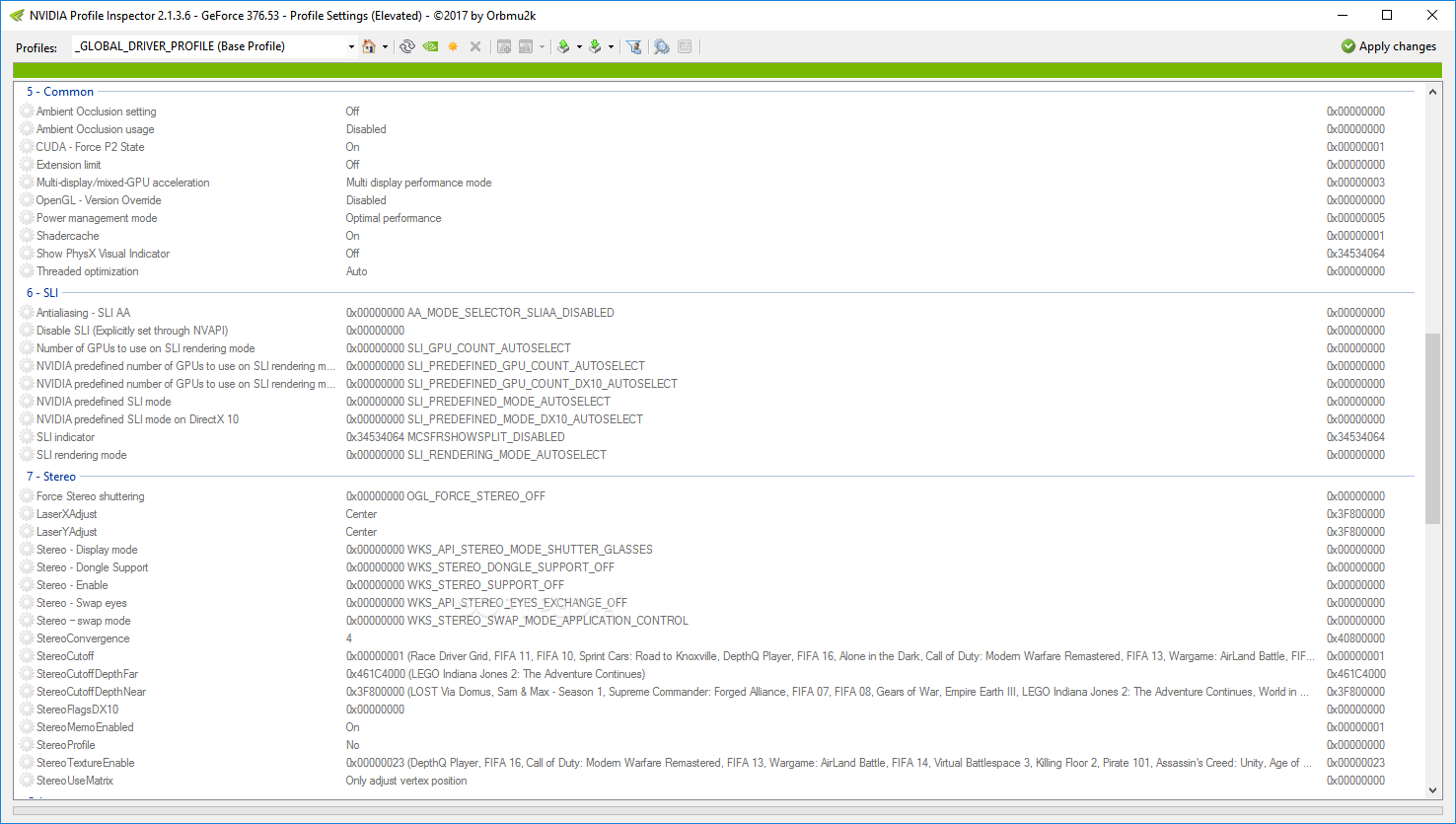
Screenshots Of NVIDIA Profile Inspector
How To Create A Custom Profile
- Download the Latest Release
Download the latest zip package using the direct download button above.
- Extract the Archive
Extract
nvidiaProfileInspector.zipto your chosen folder — no installation needed. - Launch nvidiaProfileInspector.exe
Run the executable as Administrator to ensure full driver write permissions.
- Select or Create a Profile
Use the profile dropdown to find an existing game profile, or click "Create new profile" to bind your game's .exe.
- Configure Your Settings
Adjust anti-aliasing, anisotropic filtering, V-Sync, shader cache, and frame limiter settings.
- Apply Changes
Click "Apply changes" in the top right toolbar. Settings are immediately registered with your NVIDIA driver.