NVIDIA Control Panel
The official NVIDIA Control Panel guide for Windows 10 — configure 3D settings, manage displays, optimize graphics performance, and fix missing Control Panel issues.
What Is NVIDIA Control Panel?
NVIDIA Control Panel is the official settings application included with every NVIDIA graphics driver. It provides a comprehensive interface to manage display settings, 3D rendering options, video playback adjustments, and more.
Unlike third-party tools, the NVIDIA Control Panel directly accesses driver settings — making it the go-to utility for configuring anti-aliasing, anisotropic filtering, refresh rate, G-Sync, and display resolution for your specific GPU.
For deeper hardware-level control like overclocking, use it alongside NVIDIA Inspector.
Key NVIDIA Control Panel Sections
A breakdown of every major setting group and what it controls.
3D Settings
Manage Antialiasing, Anisotropic Filtering, FXAA, Ambient Occlusion, Power Management Mode, and more for all games or per-application.
Display Settings
Configure resolution, refresh rate, color settings, digital vibrance, G-Sync compatibility, and scaling mode for your monitor.
Video Settings
Optimize video playback quality including edge enhancement, color enhancement, and noise reduction for media content.
SLI Configuration
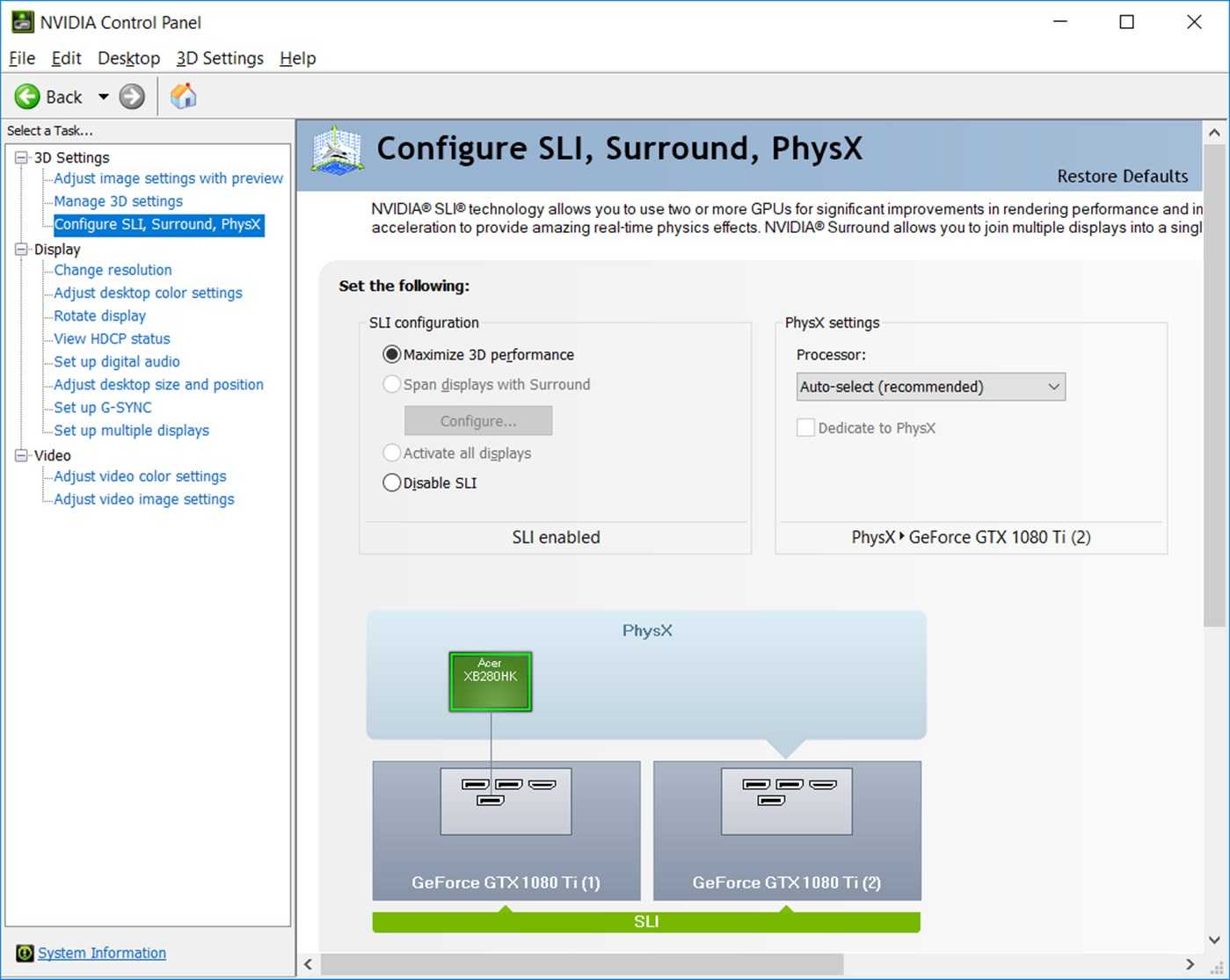
Set up and manage NVIDIA SLI if you have multiple compatible GPUs for increased rendering performance.
PhysX Settings
Choose which GPU or CPU handles PhysX calculations in supported games for better physics simulation performance.
Manage Displays
Set up multiple monitors, configure resolution per-display, rotate screens, and create custom display groups.
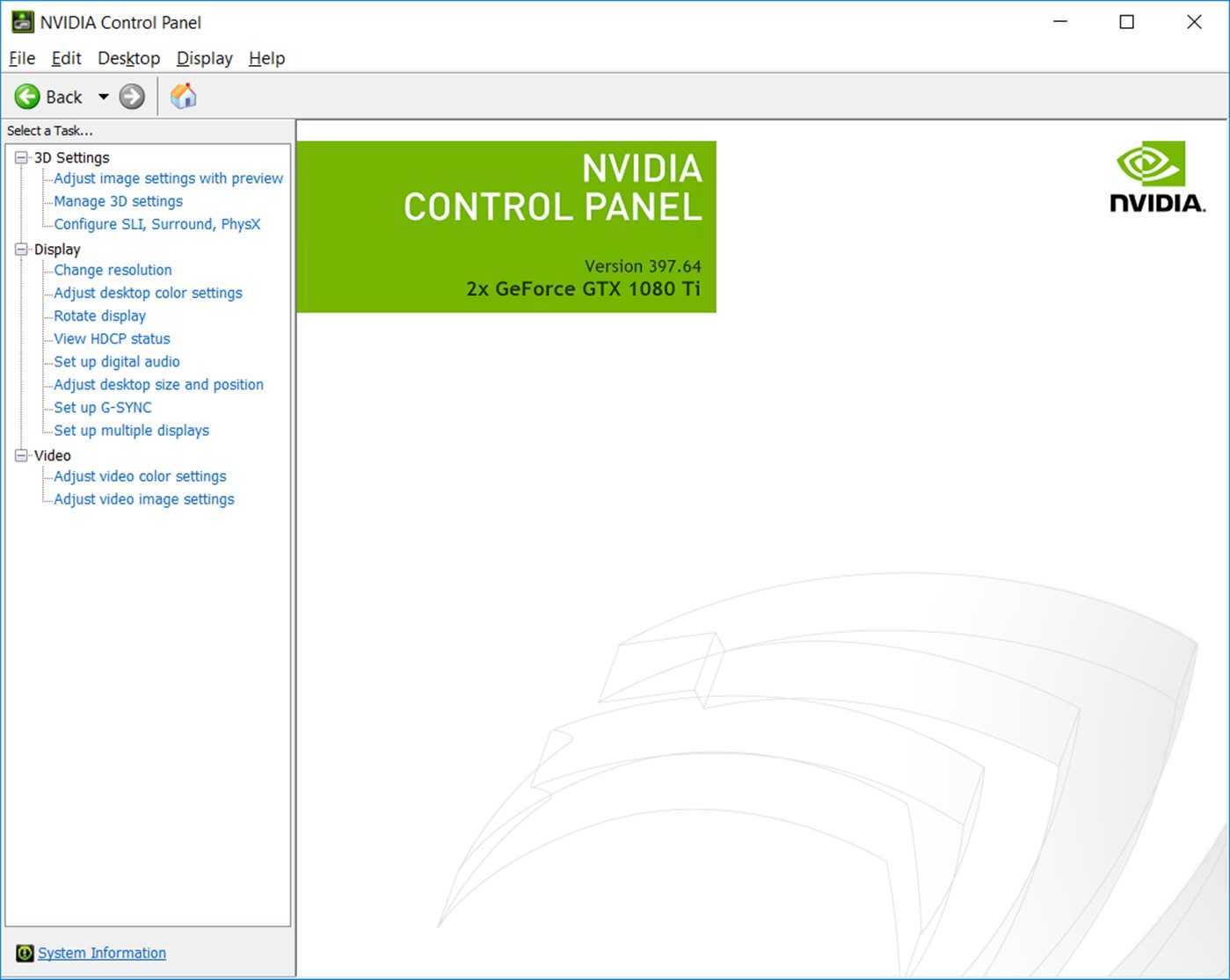
NVIDIA Control Panel Screenshots
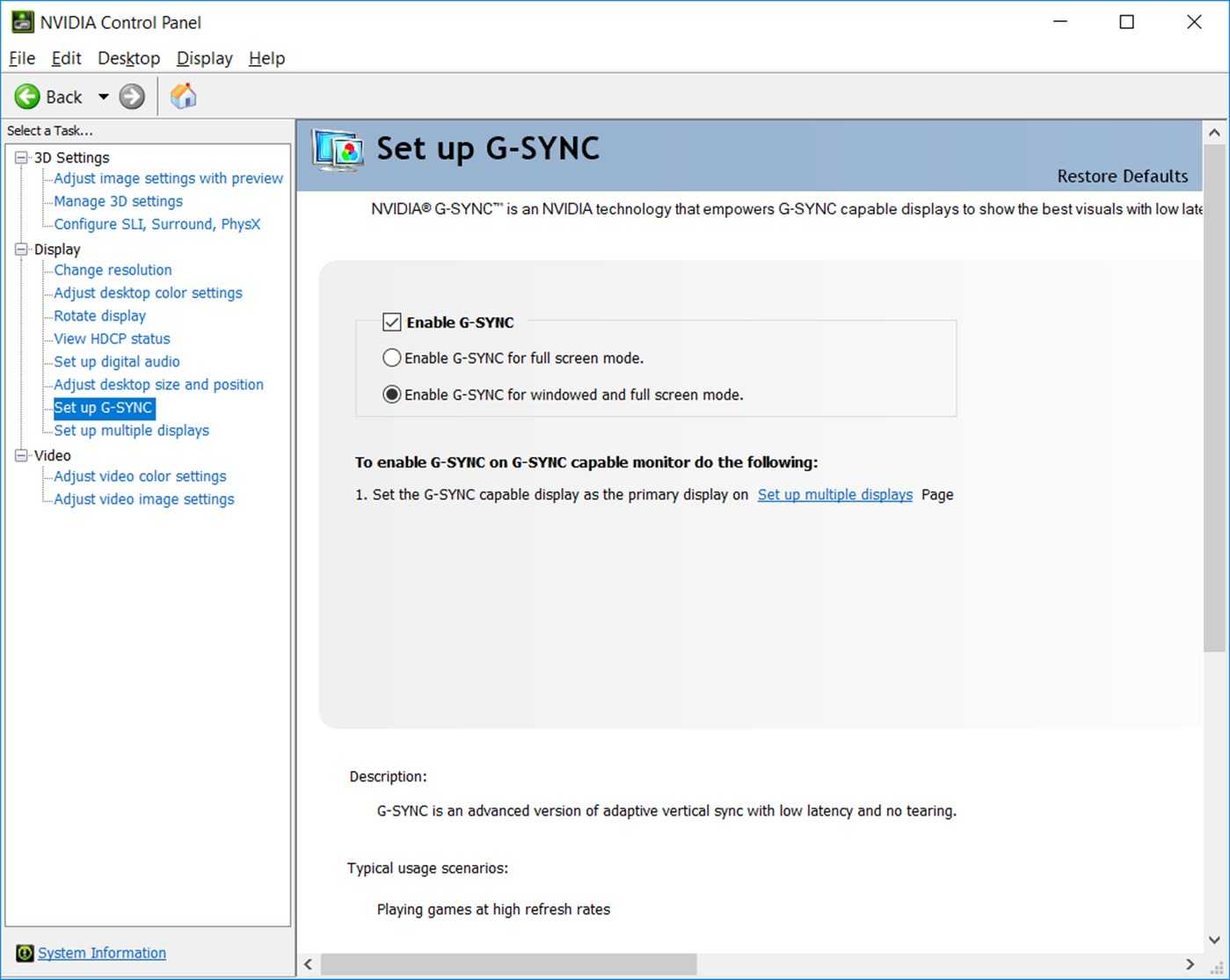
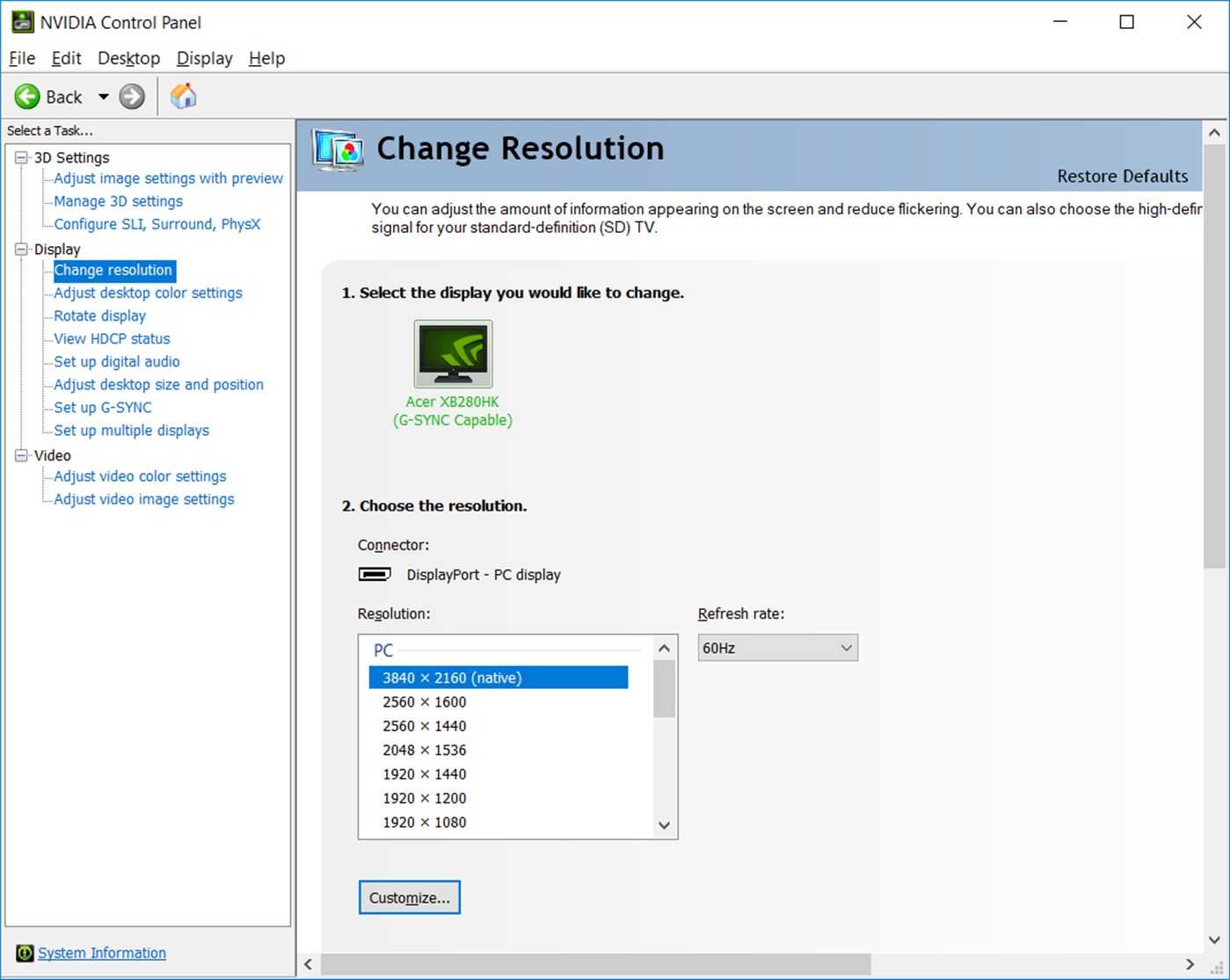
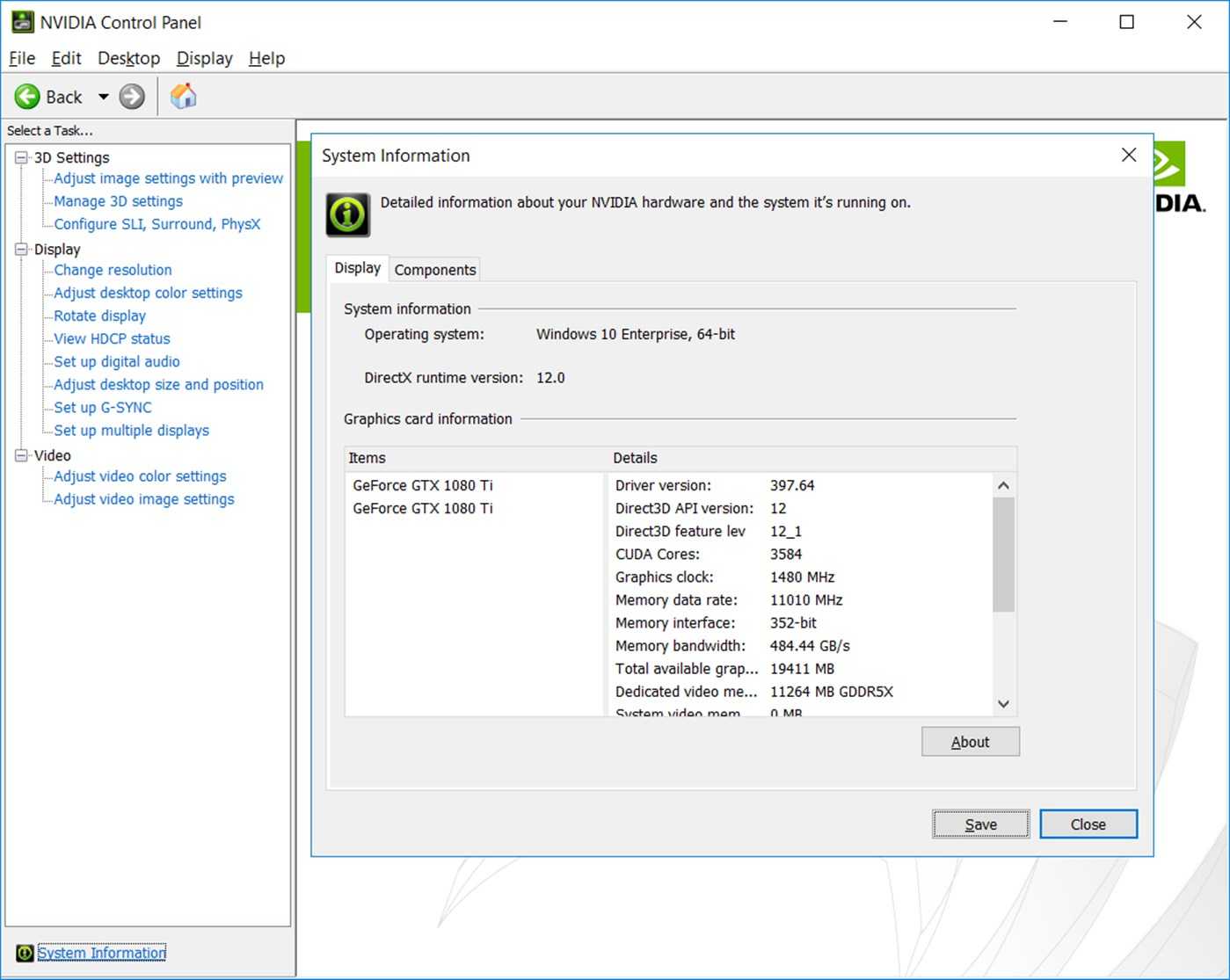
NVIDIA Control Panel Missing? How to Fix It
If you can't find the NVIDIA Control Panel on your Windows 10 PC, try these steps:
- Update your NVIDIA driver
Visit nvidia.com/Download and download the latest driver for your GPU model.
- Install via Microsoft Store
Open the Microsoft Store, search for "NVIDIA Control Panel", and install it directly. This is the recommended method on Windows 10/11.
- Enable via System Tray
Right-click the desktop → if you see "NVIDIA Display Settings", click it. Or check the system tray and look for the NVIDIA icon.
- Re-install GPU driver
Use Display Driver Uninstaller (DDU) in safe mode to cleanly remove the driver, then reinstall the latest version from the NVIDIA site.
Best NVIDIA Control Panel Settings for Gaming
These settings balanced for maximum gaming performance on Windows 10:
| Setting | Recommended Value | Why |
|---|---|---|
| Power Management Mode | Prefer Maximum Performance | Prevents GPU from down-clocking during gameplay |
| Texture Filtering Quality | High Performance | Improves FPS at slight visual cost |
| Ambient Occlusion | Off | High GPU cost, minimal visual gain in competitive games |
| Anisotropic Filtering | Application-Controlled | Let the game decide for optimal balance |
| Vertical Sync | Off | Reduces input lag; use in-game V-Sync or G-Sync instead |
| FXAA | Off | Reduces blur and improves clarity |
| Low Latency Mode | Ultra | Reduces input lag in GPU-bound scenarios |